ScriptMaster

Cold call script app and sales call flow software that guides conversations, handles objections, and helps you close more deals.

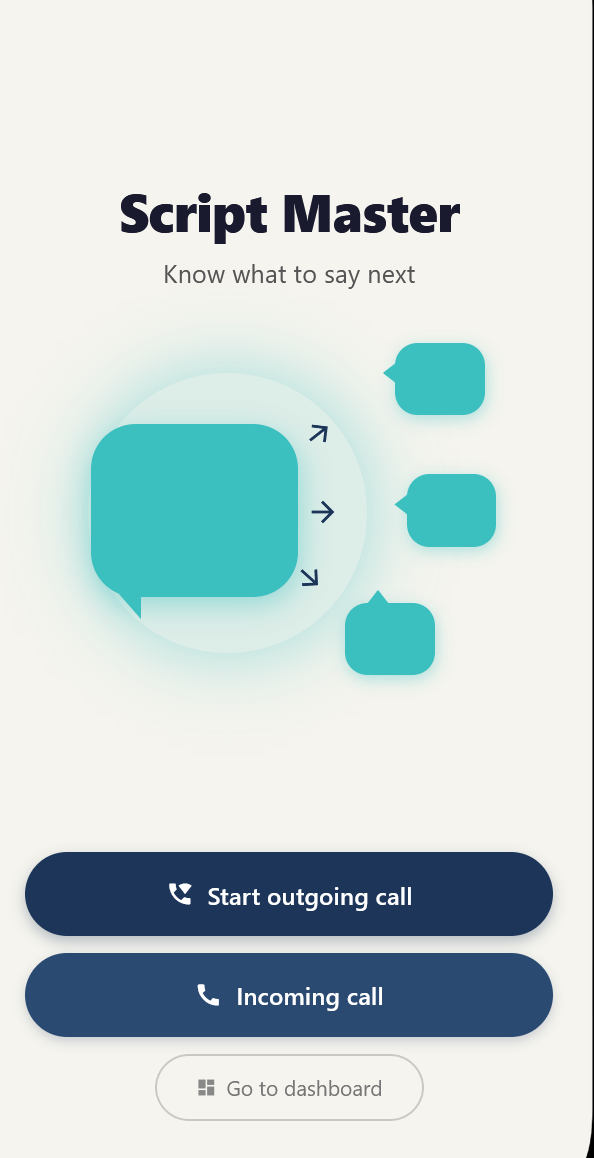
Splash screen (home screen):

The splash screen is your entry point into the app.

From here, you have three options:

  • Start Outgoing Call → Jump straight into an outbound call flow
  • Incoming Call → Prepare for an inbound conversation
  • Go to Dashboard → Access your full workspace

This screen is designed for speed. If you’re actively calling, you can start immediately without navigating through menus.

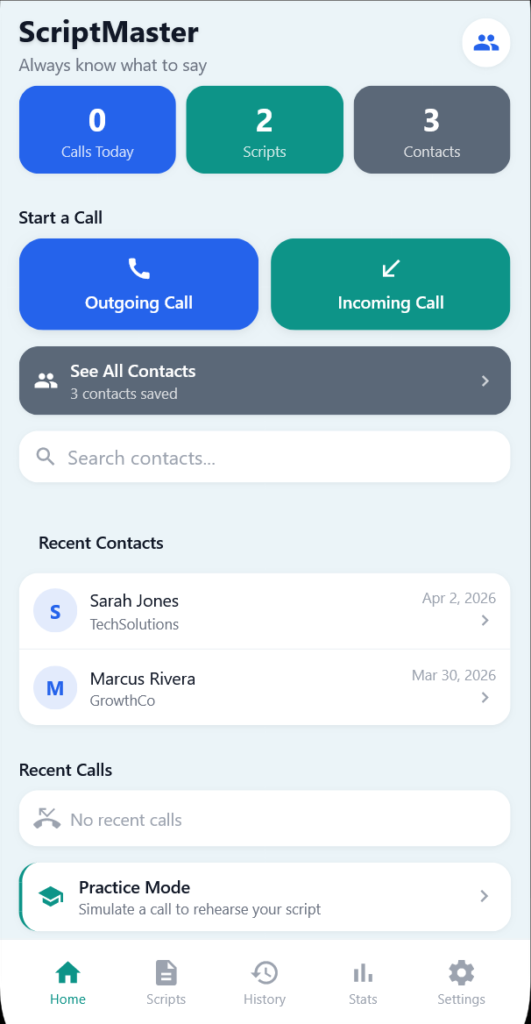
Home Screen/Dashboard

The home screen is your control center.

What you’ll see:

  • Calls Today → Quick activity snapshot
  • Scripts → Total scripts available
  • Contacts → Saved contacts

Main actions:

  • Outgoing Call → Start a cold call or outbound flow
  • Incoming Call → Handle inbound conversations
  • See All Contacts → View and manage contacts
  • Search Contacts → Quickly find someone

Additional:

  • Recent Contacts → Quick access to people you’ve recently interacted with
  • Practice Mode → Simulate a call and rehearse your script
Contacts

The Contacts section is where you manage the people you’re calling and track your relationship with them over time.


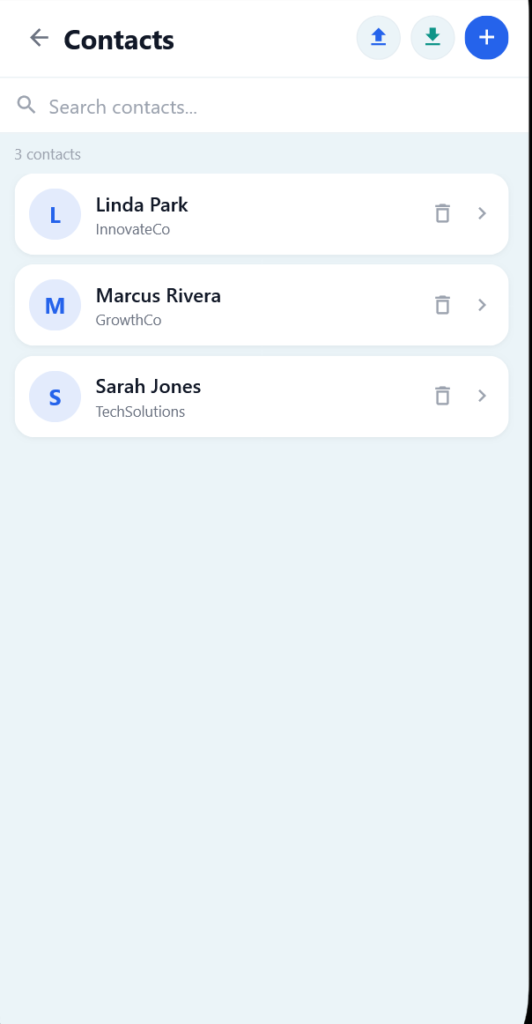
Contact List

This is your main contact database.

Features:

  • Search Contacts → Quickly find anyone
  • Add Contact (+) → Create a new contact manually
  • Import Contacts → Bring in contacts from external sources
  • Export Contacts → Download your contact list

Each contact displays:

  • Name
  • Company
  • Quick access to details

Creating a Contact

You can manually add contacts at any time.

Typical fields include:

  • Name
  • Company
  • Phone number
  • Email

This allows you to build your list directly inside the app or supplement imported data.


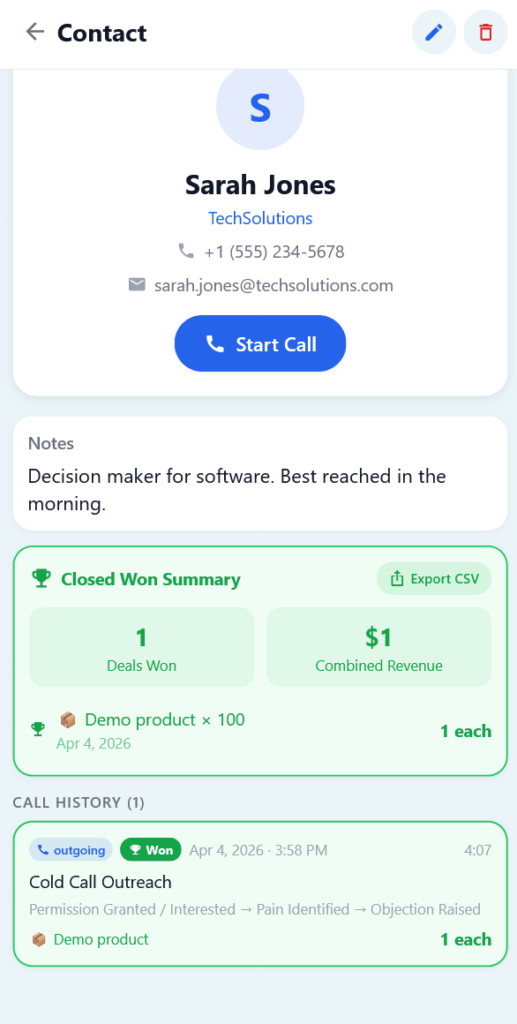
Contact Details

Selecting a contact opens their full profile.

From this screen, you can:

  • Start a call directly
  • View contact info (phone, email, company)
  • Add or review notes
  • See a Closed Won Summary
  • Review full call history

Call History (Per Contact)

Each contact keeps a running log of every interaction.

You’ll see:

  • Call type (incoming/outgoing)
  • Duration
  • Outcome (won, follow-up, etc.)
  • Script path taken
  • Notes

This gives you full context before your next conversation.


Closed Won Summary

If you’ve marked calls as Won, this section shows:

  • Total deals won
  • Combined revenue
  • Products sold
  • Dates of wins

This turns each contact into a mini performance snapshot.


Exporting Contact Data

You can export contact-related data at any time.

Exports generate clean, copy/paste-ready text, making it easy to:

  • Add to your CRM
  • Save in notes
  • Send via email
  • Track externally

Key Concept

Contacts are not just a list.

They are your call history + deal history + context, all in one place.

Every call builds on the last one.

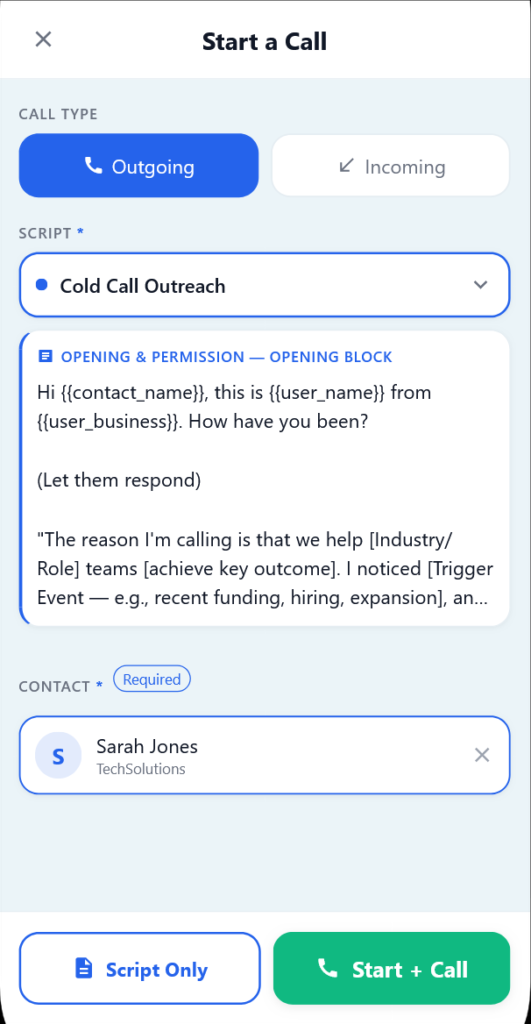
Starting a call

Outgoing Call:

  1. Select Outgoing
  2. Choose your Script
  3. Select a Contact (required)
  4. Tap Script Only to only display the script OR Start + Call to start the script but also dial the contact through your native phone call app. The script functions exactly the same regardless of what you choose; the only difference is start + call dials the contact. 

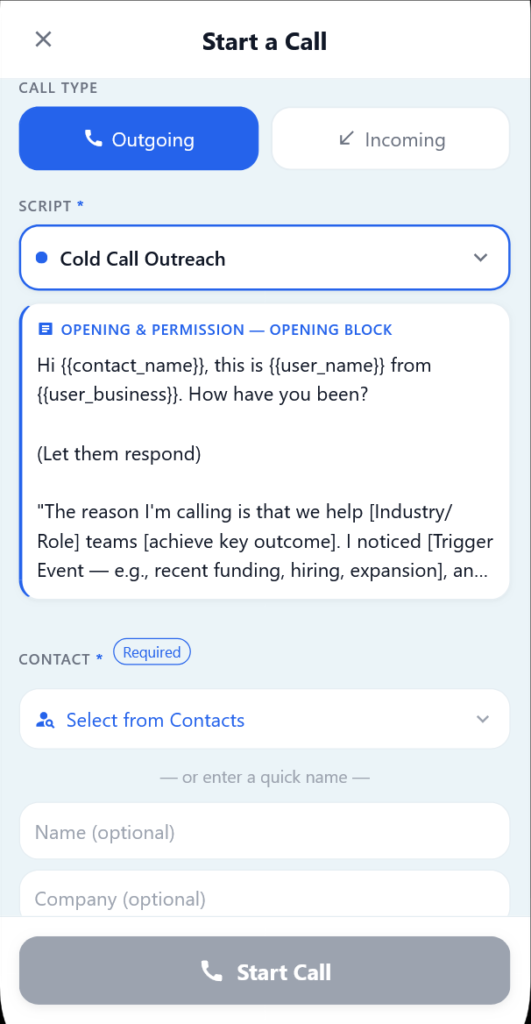
Incoming Call:

  • Same process, but:
    • You can add contact info on the fly if the caller isn’t saved, and selecting a call is not required before getting into the script. (Helpful in case you are taking a call from an unknown contact. You CAN also add the contact if you would like at the end of the call)

Once the call starts, both incoming and outgoing behave exactly the same.

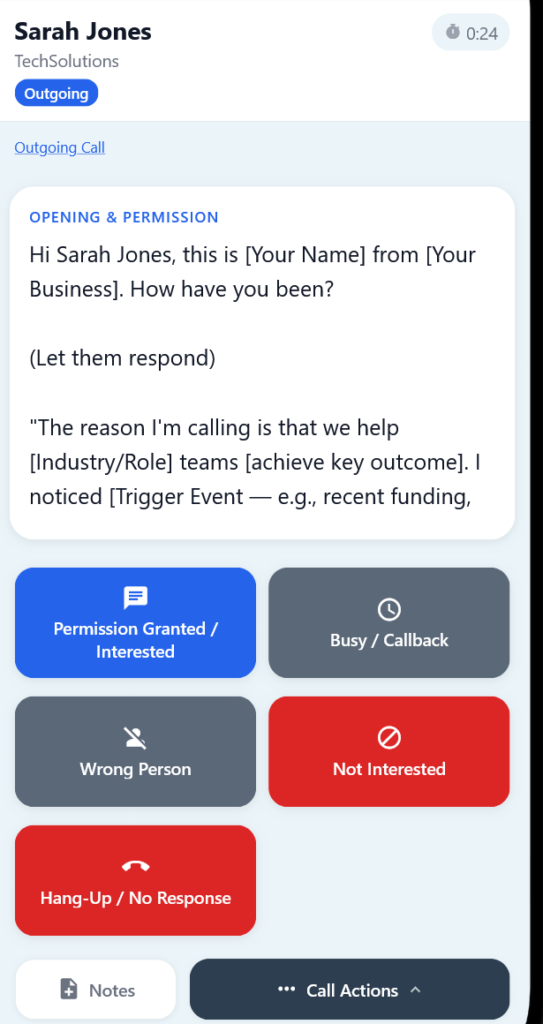
In-Call Experience

This is where the app does its job.

What you’re seeing:

  • Script Block → What to say
  • Conversation Buttons → How the prospect responds
  • Breadcrumbs (Top) → Your path through the conversation

How it works:

  • Tap a button based on what the prospect says
  • The app moves you to the next block instantly
  • This creates a live, guided conversation flow

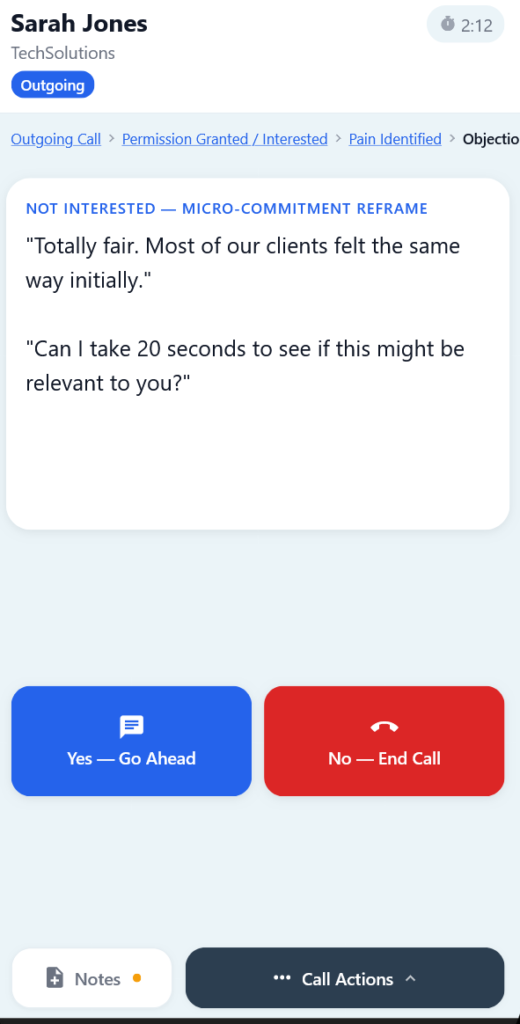
Breadcrumb Navigation

At the top of the screen, you’ll see your path (like:

Opening → Interested → Pain Identified → Objection)

Why this matters:

  • Conversations are not linear
  • Prospects change direction

You can:

  • Tap any previous step
  • Instantly jump back in the conversation

This lets you adapt in real time without losing control of the call.

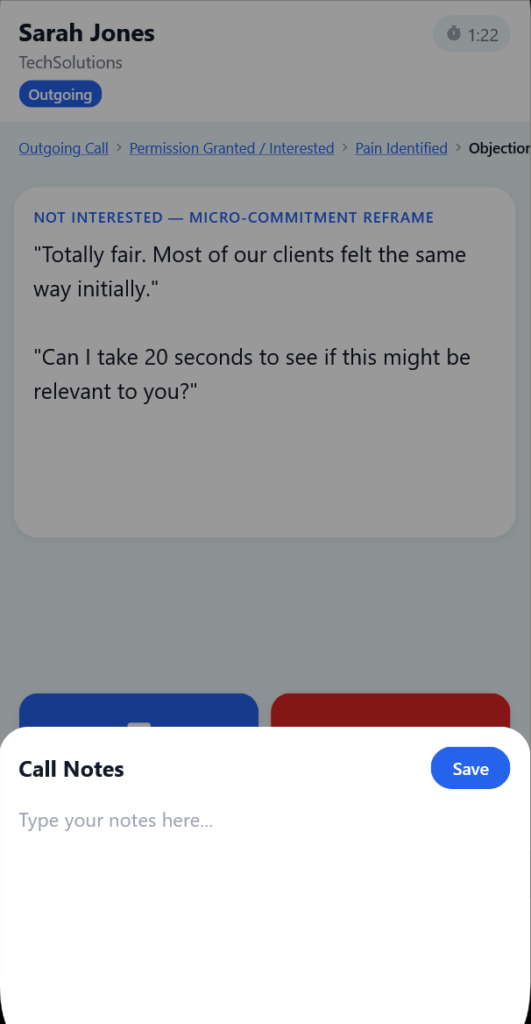
Notes (During Call)

Tap Notes at any time during the call.

Use this for:

  • Key details
  • Objections
  • Follow-ups
  • Anything worth remembering

Notes are saved and attached to the call record when the call ends.

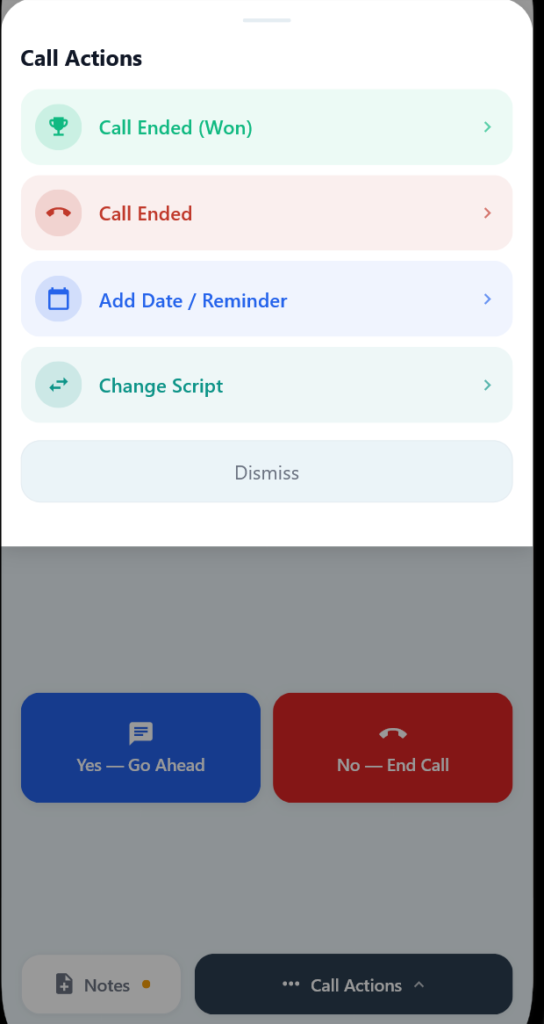
Call Actions

Tap Call Actions to manage the call.

Options:

🟢 Call Ended (Won)

  • Marks the call as a win
  • Opens a form to enter:
    • Product(s)
    • Quantity
    • Price
    • Notes
  • This creates a structured note for later reference
  • Call will show green in history

🔴 Call Ended

  • Ends the call normally
  • No special tagging

📅 Add Date / Reminder

  • Select a date/time
  • This gets added to call notes
  • Call will show yellow in history

🔄 Change Script

  • Switch scripts mid-call
  • Useful if the conversation shifts direction
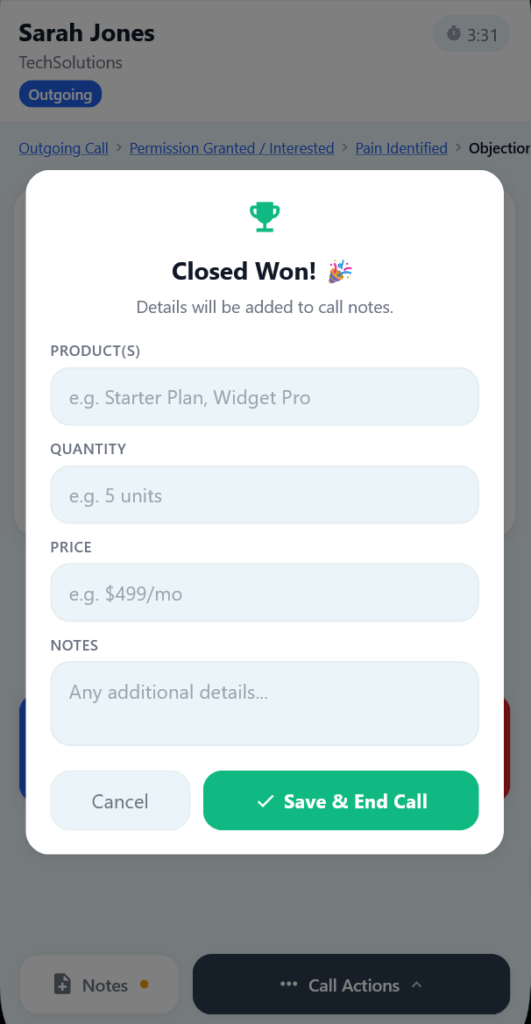
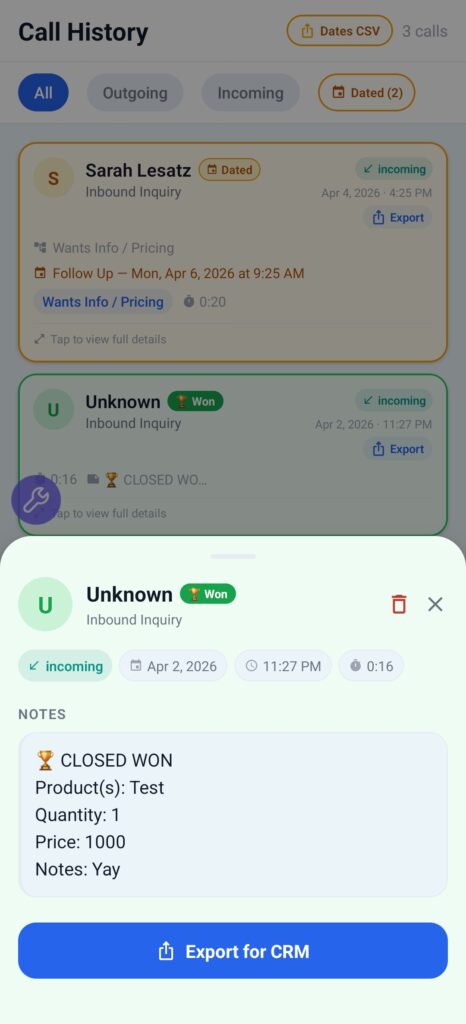
Ending a Call (Won Example)

When marking a call as Won, you’ll enter:

  • Product(s)
  • Quantity
  • Price
  • Notes

This does not integrate with a CRM automatically.
It simply creates a clean, structured summary inside your call notes for easy reference or export.

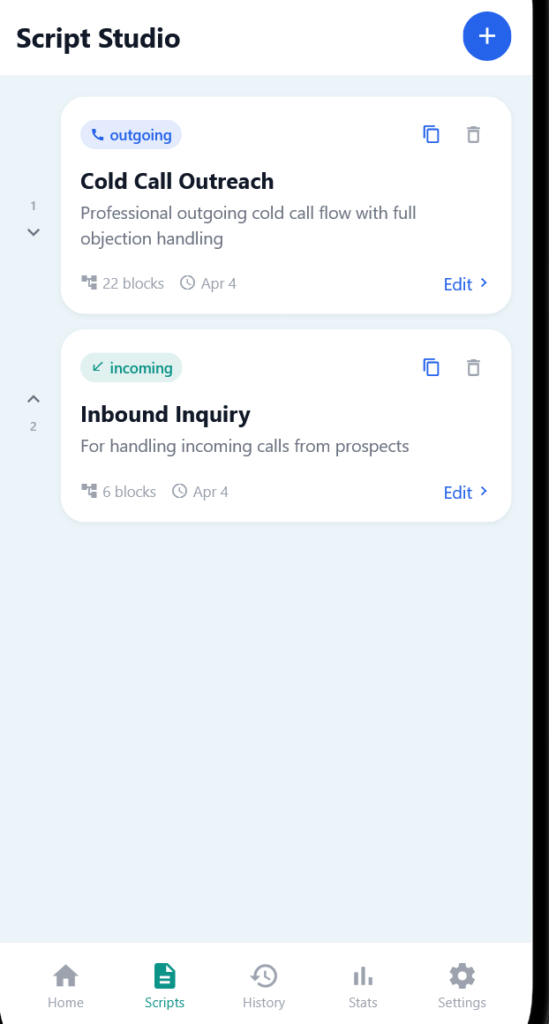
Scripts

Default Setup:

  • 1 Outgoing script
  • 1 Incoming script

You can:

  • Duplicate scripts
  • Create new ones
  • Reorder them

Important:

  • The top script in each category = default when starting calls

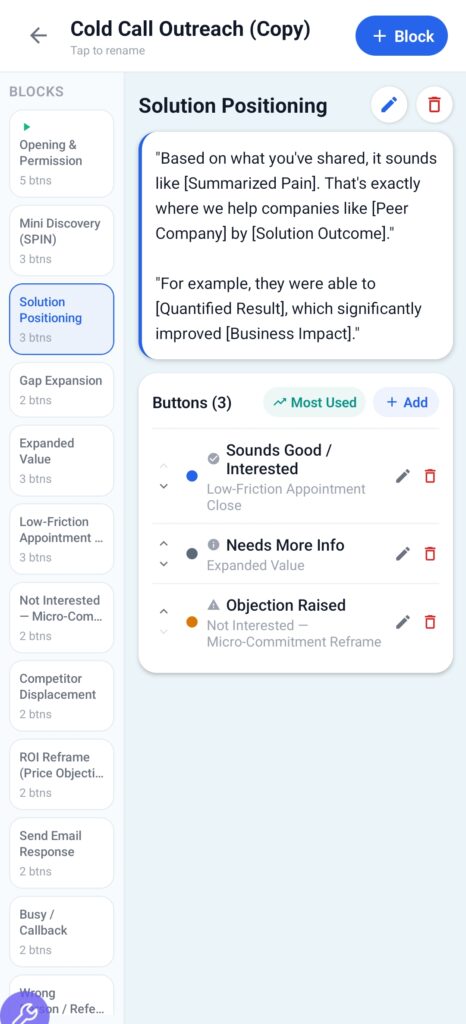
Creating Your Own Script

Step 1 — Build Blocks FIRST

Each script is made of blocks (conversation steps).

Example:

  • Opening
  • Discovery
  • Objection Handling
  • Close

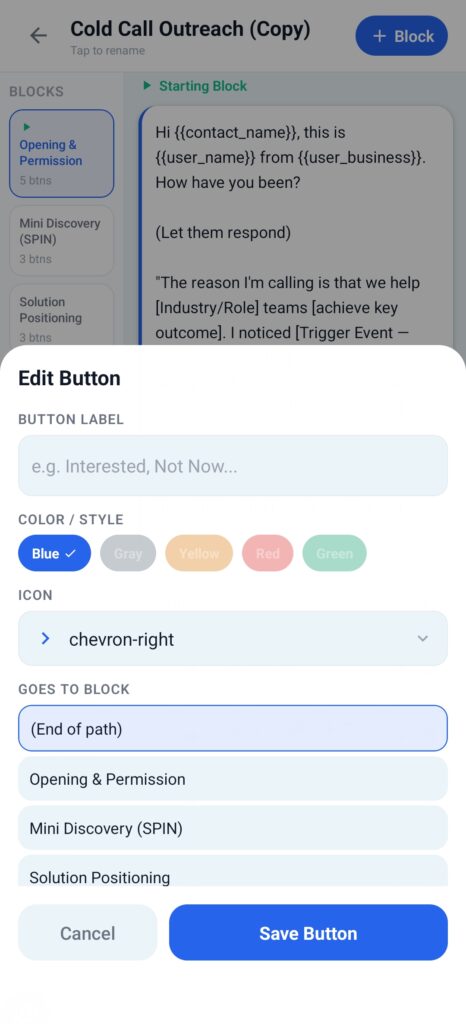
Step 2 — Add Buttons (Routing)

Buttons determine where the conversation goes next.

Each button:

  • Has a label (what the prospect says)
  • Routes to another block

⚠️ Important:
Buttons require destination blocks to already exist
→ That’s why you build blocks first


Variables (Dynamic Fields)

You can insert:

  • {{user_name}}
  • {{user_business}}
  • {{contact_name}}
  • {{contact_business}}

These auto-fill during calls.

Tip: If insertion is finicky, tap twice.


Script Studio

  • View all scripts
  • Edit, duplicate, delete
  • See number of blocks
  • Quickly access your flows
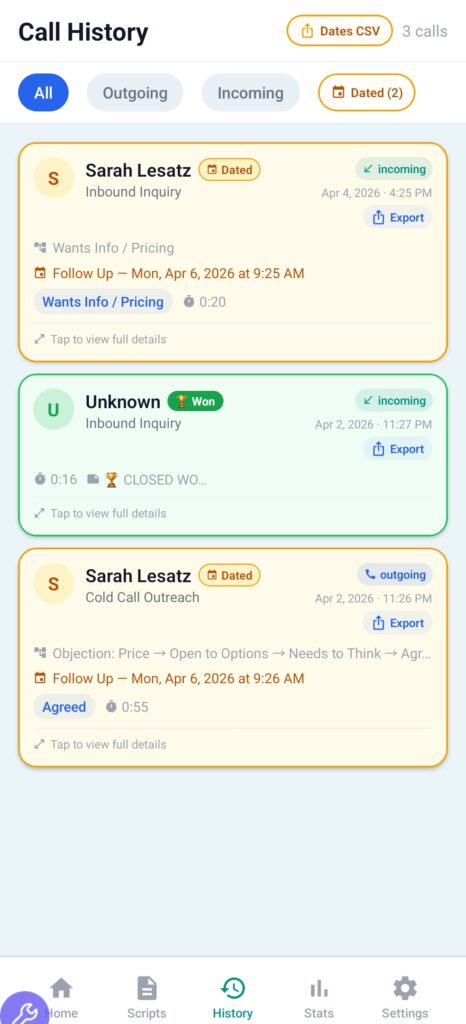
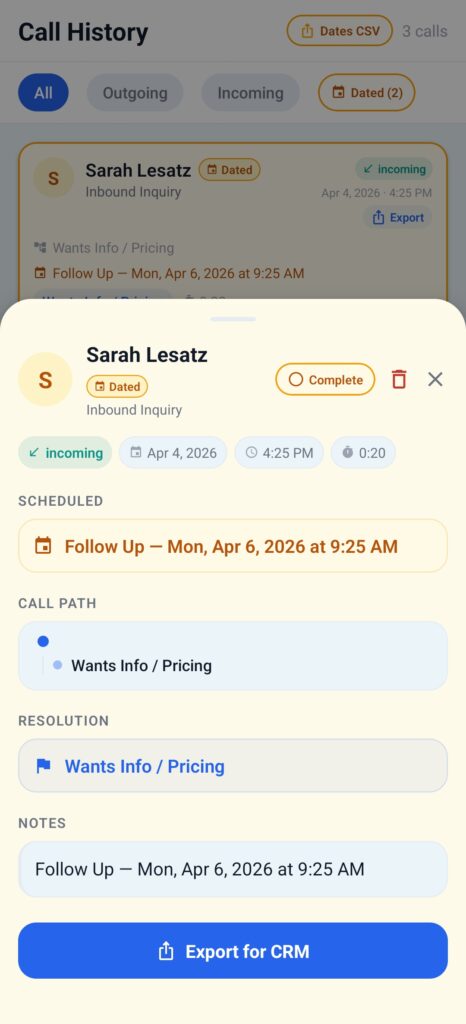
Call History

View all past calls.

Color system:

  • 🟢 Green → Won
  • 🟡 Yellow → Has follow-up date
  • Default → Standard call

Each call shows:

  • Contact
  • Call type
  • Duration
  • Outcome
  • Notes preview

Tap a Call to See:

  • Full notes
  • Call path
  • Scheduled follow-ups
  • Resolution

Export Feature:

  • Tap Export
  • Generates a copy/paste-ready text block

Use it for:

  • CRM notes
  • Emails
  • Calendar entries
  • Anywhere else
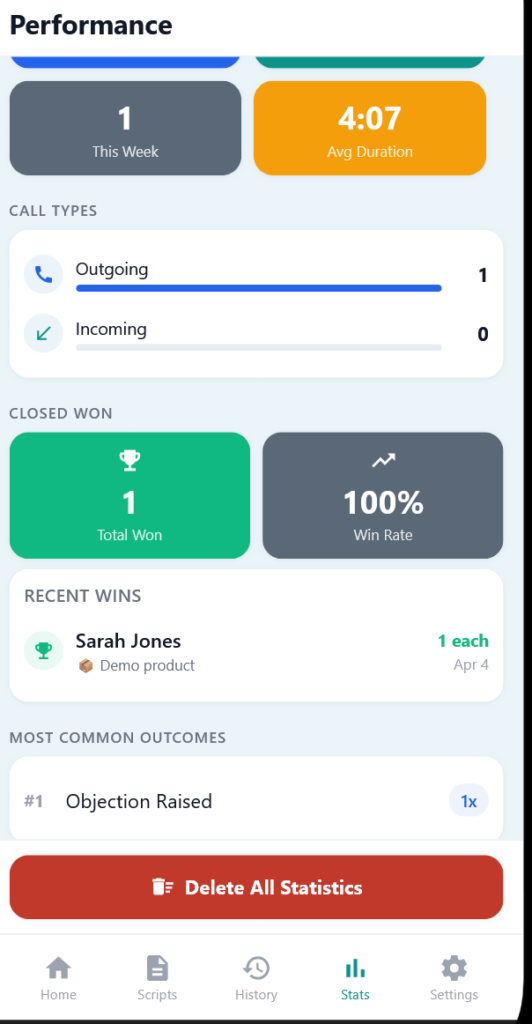
Stats

Track your performance.

Includes:

  • Calls made
  • Average duration
  • Win rate
  • Total wins
  • Most common outcomes

Reset:

  • “Delete All Statistics” clears all data
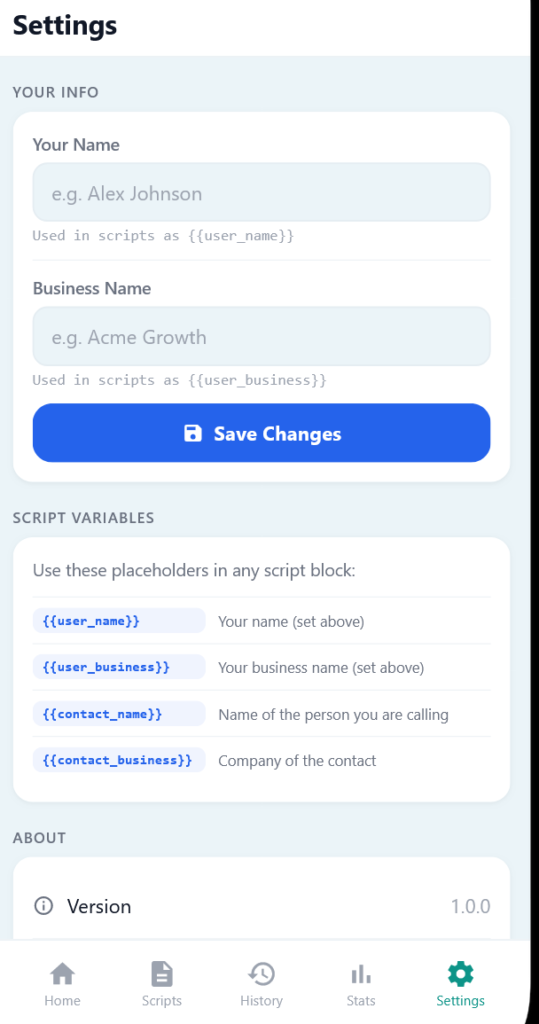
Settings

Your Info:

  • Name → used in scripts
  • Business Name → used in scripts

These power your dynamic variables.


Also Included:

  • App version
  • Website link (Wisconsin Web Works)
  • Support contact
  • Privacy Policy
  • Terms of Use

Key Concept (Important)

ScriptMaster is not a script reader.

It is a decision engine.

  • You don’t memorize
  • You don’t guess
  • You follow the conversation

And the app keeps you on track.