
Travel Brief
Travel Brief is a simple tool designed to capture and organize essential crew layover information in one place.
Quickly log hotel details, shuttle times, meal hours, and other key notes at check-in, then easily share the information with other crew members.
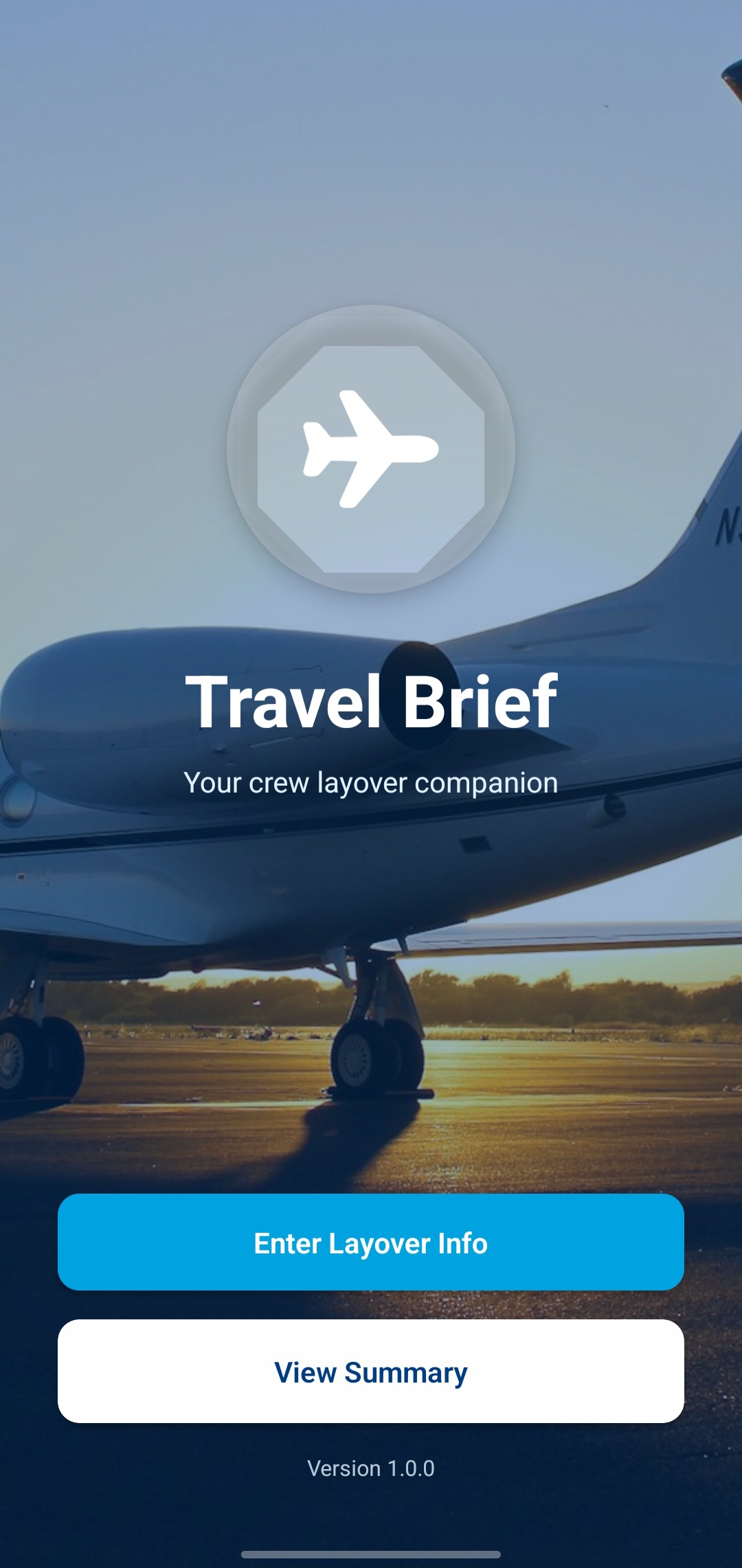
Splash screen (home screen):
The Splash Screen is the starting point of Travel Brief. It provides quick access to your current layover details or allows you to create a new layover entry in seconds. Here, you’ll see two primary buttons: an “Enter Layover Info” button and a “View Summary” button.
Enter Layover Info
Tap this button to create or update a layover.
This is where you’ll enter:
Hotel details
Shuttle times
Breakfast and dinner hours
Alcohol cutoff times
Wi-Fi notes, amenities, or other front-desk information
This option is typically used right after check-in, while the front desk is providing details.
View Summary
Tap this button to view your current layover summary.

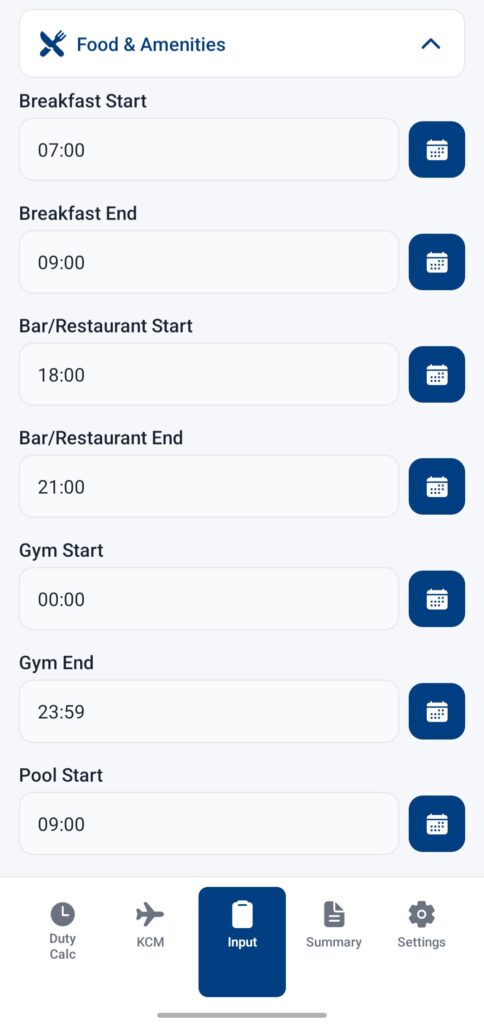
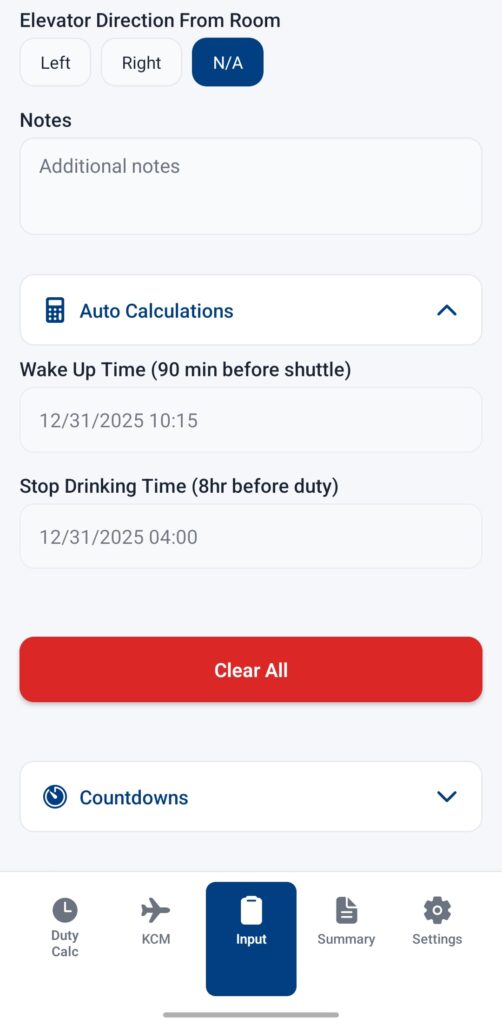
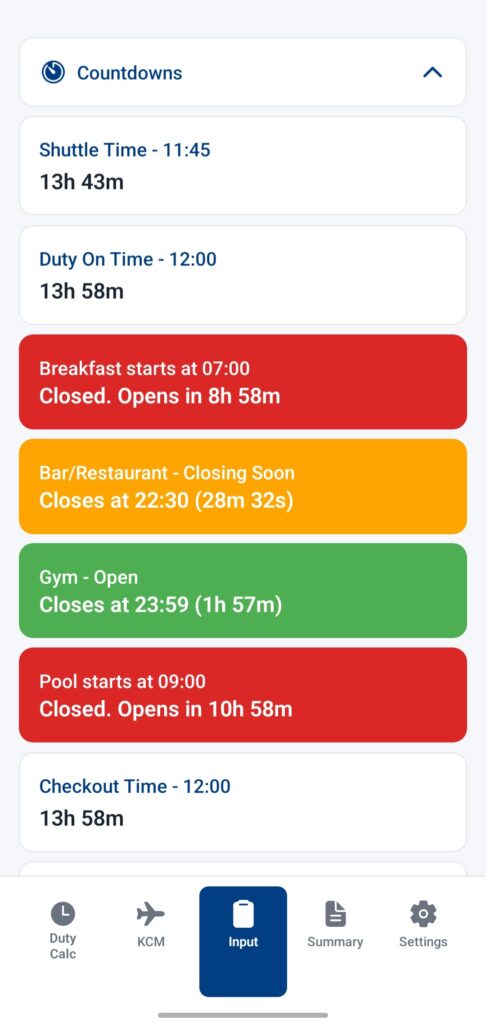
Input screen
This is where you enter information about your layover, and is primarily used when checking in (in conjunction with the “spiel” the front desk person gives you.
Vitals Tab
- Hotel name: enter hotel name
- Room number: enter your room number (this will remain private unless you decide to share it in the settings)
- Shuttle date & time: enter what time your shuttle is
- Duty on date & time: enter when your duty on time is.
Note: There is an option in the settings page to link the shuttle and duty times based off one input into either box. Read more about this feature on the settings page.
Food & Amenities Tab
This is where you can enter start (opening) and end (closing) times for amenities found at most crew hotels. Most of these have default times already inserted, but you can edit any of the fields.
Social meet time: This is the time you and your coworker(s) agreed to meet for dinner and/or drinks
Other Tab
Elevator Direction: This is the direction you would walk out of your room to get to the elevator. We all know those four, five, six+ day trips can start to blur together. This information will remain private to you, as it is specific to you.
Notes: Just a blank note field to share with others.
Auto Calculations
Wake Up Time: Takes your “prep time” (found under settings) IN MINUTES and subtracts it from your shuttle time in order to give you your wake up time. NOTE: YOU MUST MANUALLY SET YOUR ALARM CLOCK (at least for now with version 1). For example, a person has a 0700 shuttle and requires 60 minutes of prep time (shower, eat, make up, etc), they would need to wake up at 0600.
Stop Drinking Time: Similar to the wake up time, this field subtracts your alcohol cut off HOURS (again, entered in settings) from your DUTY on time.
Clear All: This button clears all user inputs and returns all default values to their defaults.
Countdowns: This field contains graphic countdowns (you can select which ones you want to see on settings page) to events starting or ending.
- Green = open
- Yellow = closing or ending withing 30 minutes
- Red = past time; closed
Summary Screen
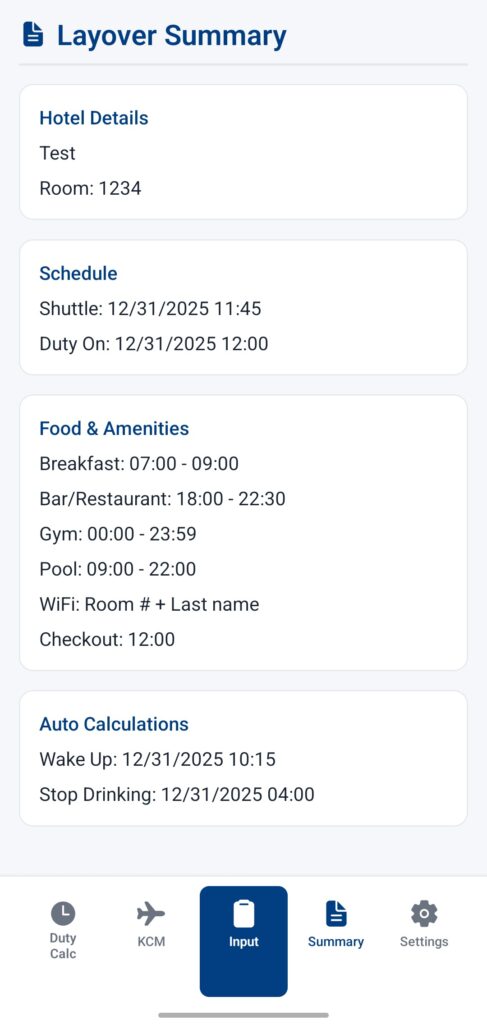
This is where you view information about your layover.
Edit Layover Info Button: Simply returns you to the input screen
Display on top (toggle): Simply allows you to choose if you want to see the countdowns or the layover summary on top. No information changes or is lost, just one section first then the other or vice versa.
Countdowns: This field contains graphic countdowns (you can select which ones you want to see on settings page) to events starting or ending.
- Green = open
- Yellow = closing or ending withing 30 minutes
- Red = past time; closed
Layover Summary: Displays date and time values for all fields with data from the input form
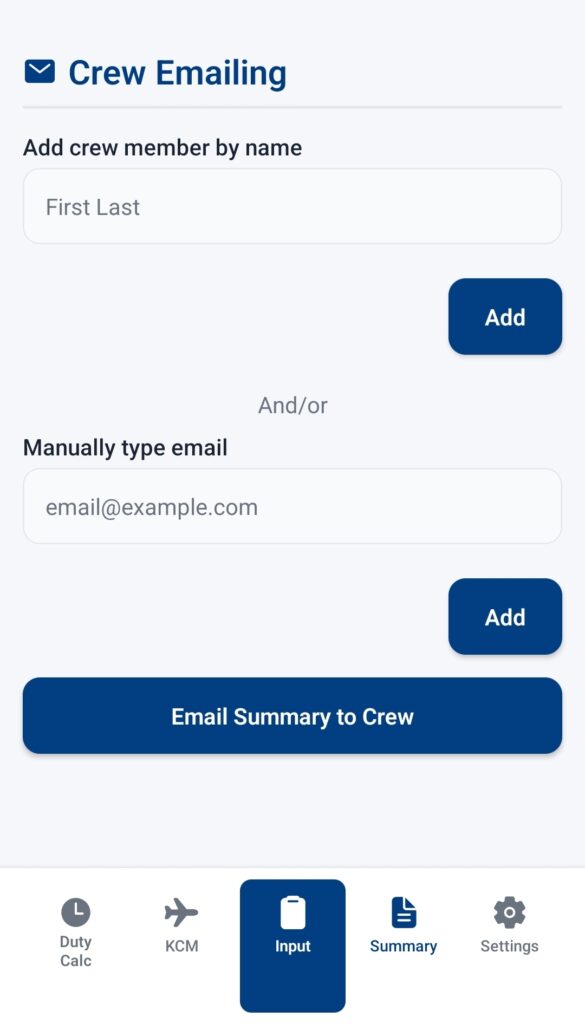
Crew Emailing:
Add crew member by name: NOTE: this feature requires some set up on the settings page. Essentially, you need to enter an email domain (including the @ and .com). And then pick your company’s email pattern (such as first.last). Once you get those two settings established, simply typing first and last names will populate an email based off the pattern you entered.
For example, if you have an email domain of @test.com and a name pattern of f.last, and then type in “John Doe” in the “add crew member by name” area, the output will be j.doe@test.com
Manually type email: This is just a field to manually type whatever email. I included this in case your work email does not follow the patterns I established, maybe you have multiple people of the same name, your work uses employee numbers, you have a personal email address… or whatever other reason!
All emails entered, regardless of entry method, will persist from use to use but you can delete individual or all emails at the bottom of the screen.
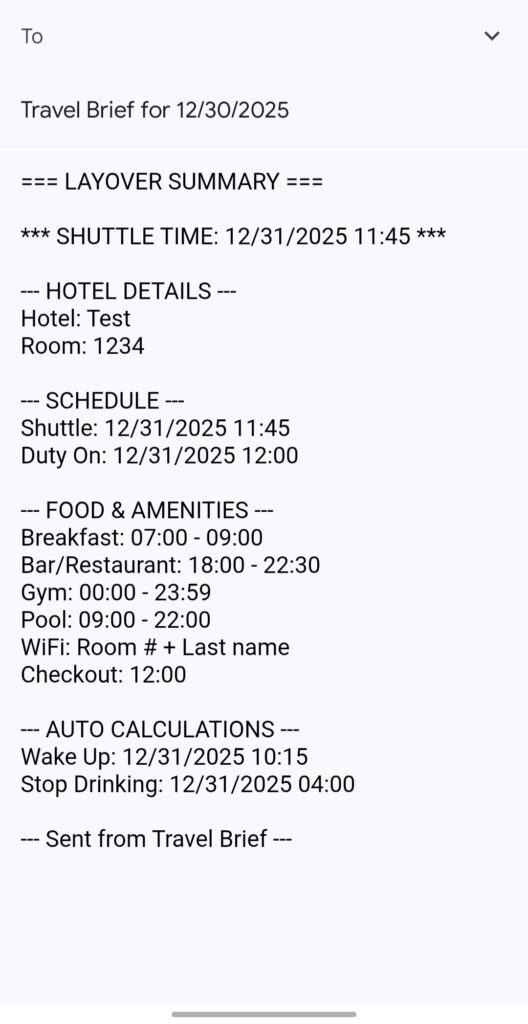
Email Summary to Crew: Populates an email summary (again, dependent upon your entries on the input page) and opens your default email app with emails pre-populated. All you have to do is review and push send. *Note, since this just simply opens your email app, verify your “from” email is the email you WANT to send this from.
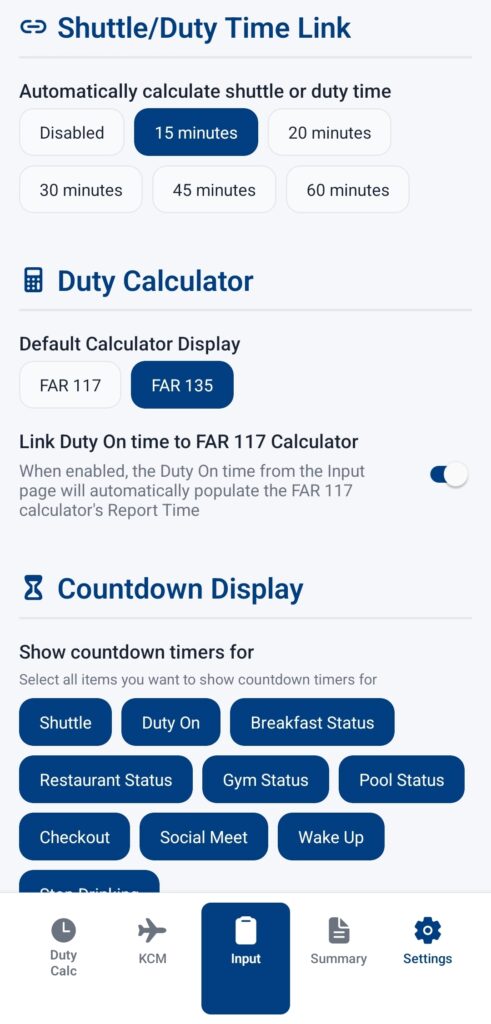

Settings Screen
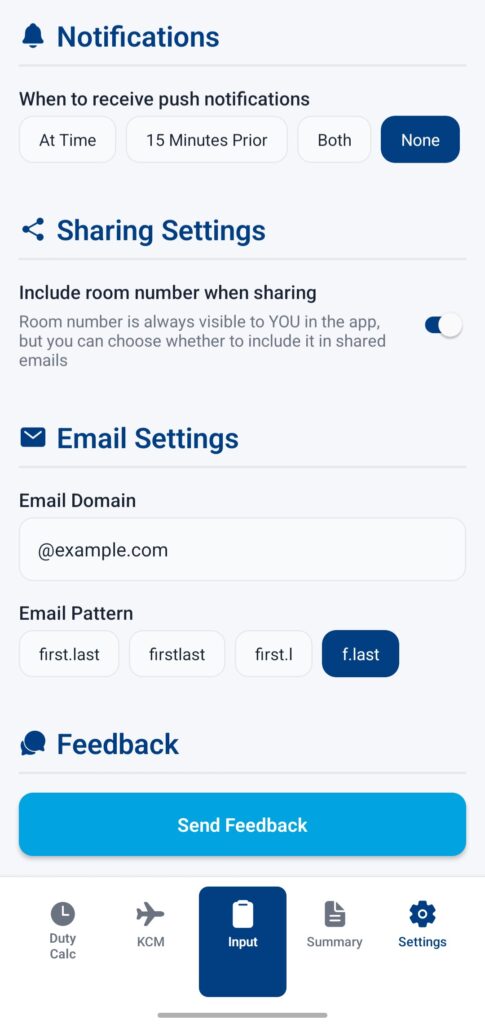
This is where you change preferences within the app.
Default Times
Prep Time (in Minutes): How much time you need from waking up to ready for shuttle. Shuttle time minus prep time equals wake up time (in auto calculations on summary and input pages)
Alcohol Cutoff (hours before duty): How many hours before duty may you drink. Use this to match your company’s policy. Duty time minus this field = stop drinking time in summary and input pages.
Appearance (Theme): Changes app appearance between light and dark, or auto (which goes off device settings)
Time settings (time format): Choose between 12 hour (am/pm) or 24 hour formats (military time)
Shuttle/Duty Time Link Choose between disabled (off), 15, 20, 30, 45, or 60 minutes between shuttle time and duty time. This is a convenience item for you, the user. With this setting, you only need to put information into either shuttle OR duty on time and the other field will automatically populate with a time that is however many minutes (based on your selection) earlier (if you put a duty on time) or later (if you put a shuttle time). If you choose to disable this feature, you must input both the shuttle and duty on times. For example, if you selected the 30 minute link and inputted a duty on time of 11:00, the shuttle time will automatically populate to 10:30.
Duty Calculator
Default Calculator Display: Choose between the FAR 117 or FAR 135 calculator to appear “first” on your “duty calc” page. Does not affect any function, and you can still flip between either feature. Just determines which one appears first.
Link Duty On time to FAR 117 Calculator: Toggle on or off. FAR 117 uses your report time to determine how long you can be on duty for. This is another convenience item that simply saves you one more input. It will take the duty on time you entered into the input screen and transpose it to your duty on time for the 117 calculator.
Countdown Display: Choose which countdown(s) you want displayed. You must individually select your desired countdowns.
Notifications: Get a device notification for when your countdown timers (shuttle time, stop drinking, breakfast starting/ending, etc) either start or end. You can get notified at the time of the event, 15 minutes prior to, both, or neither.
NOTE: This app does not know if you are on a trip or at home, so you MUST turn off notifications when you get home in order to not receive nuisance notifications when you aren’t on a trip.
Sharing Settings: Toggle switch to include YOUR room number in the email output. It is always visible to YOU within the app, but this allows you to share it with your coworkers if you so decide.
Email settings:
Email domain: You MUST include the @ and the .com. This is where you can input your company email domain. So @example.com, @united.com, @delta.com, etc
Email pattern: Select the email pattern your company uses for email addresses, such as first.last names, first initial.last name, etc.
The “Add crew member by name” section on the summary screen will take both of these settings (domain and pattern) to generate an email address.
For example, if you select first.last with an @company.com domain, and you are flying with John Doe, the output will be john.doe@company.com. Similarly, if you select a f.last pattern, the output will be j.doe@company.com.
Feedback (send feedback button): Opens a blank email dialogue to allow you to send any feedback directly to me.
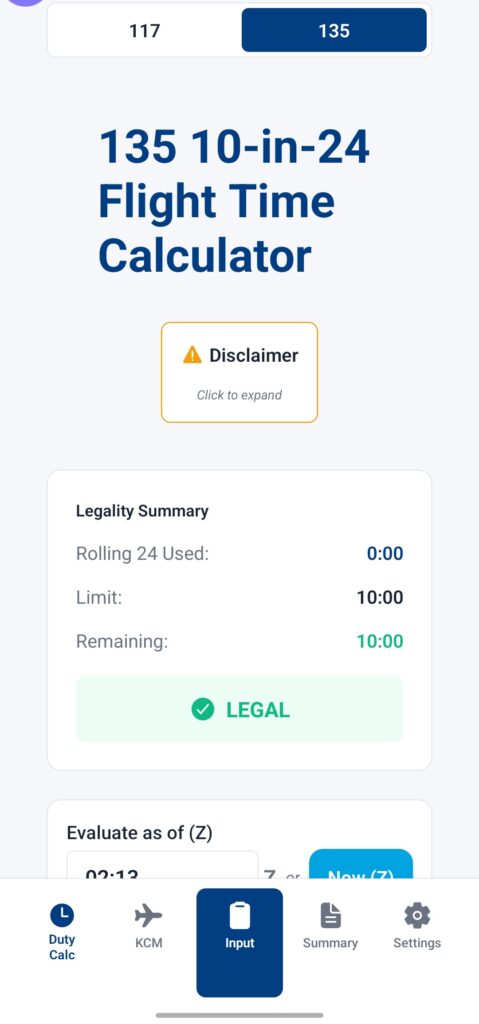
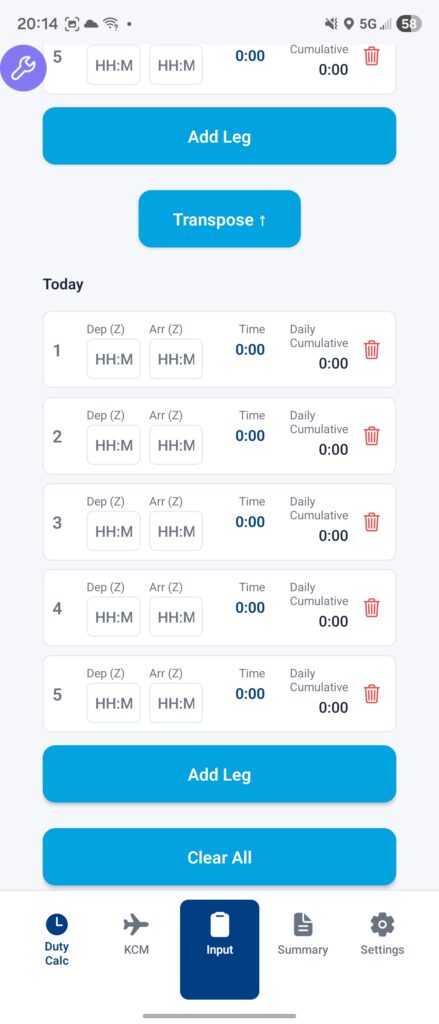
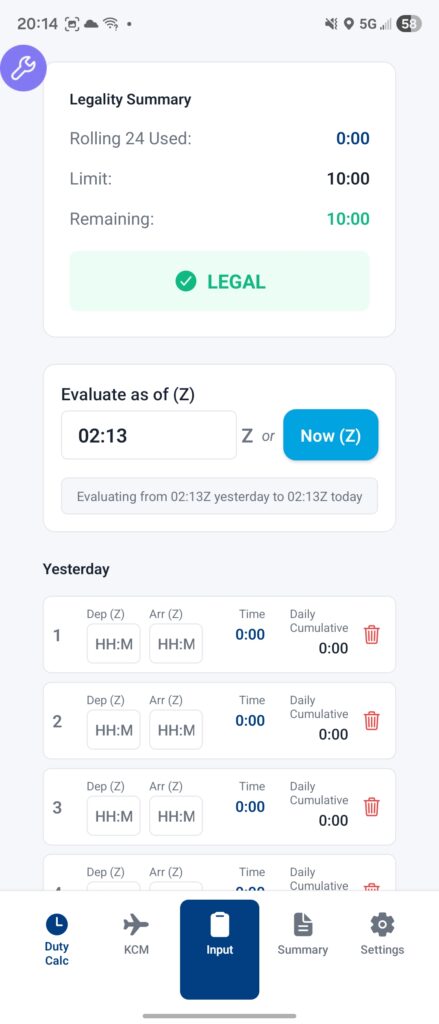
Duty Calculator
NOTE: AS WITH EVERYTHING ON THIS APP, ANYTHING ON THE “DUTY CALCULATOR” FUNCTION IS “ADVISORY ONLY” AND THE USER/CREWMEMBER RETAINS ALL RESPONSIBILITY TO ENSURE COMPLIANCE. DIRECT ANY SPECIFIC QUESTIONS TO YOUR SCHEDULING DEPARTMENT.
FAR 117 Tab
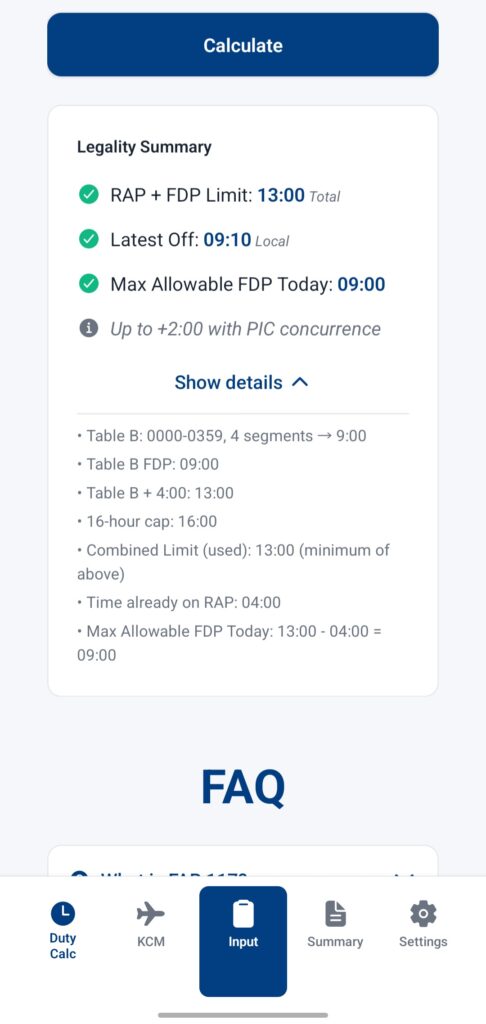
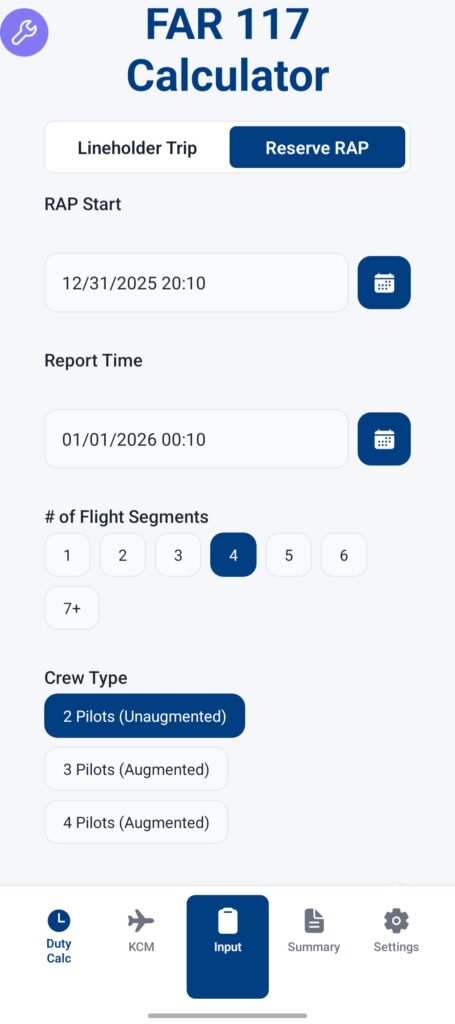
Options are given for lineholder and reserve duty assignments. Fill out the appropriate fields and click “calculate”. The app will then provide an analysis of FAR 117 tables A and B based on your inputs.
AS A REMINDER, deadheads do NOT count as a flight segment, but do count towards your FDP. Advanced features such as split duties, window of circadian low, consecutive overnight duties, etc are not accounted for in version 1.0, but are planned for a future update. As of now, this is simply a digital version of tables A and B. Table C (augmented crews), while referenced, is not fully integrated on this version. Accuracy checks were performed, but 100% accuracy cannot be guaranteed for every situation. Again, direct any and all questions to your scheduling department. 117 FAQs and images (cheatsheets) are included below the calculator for reference.
135 Tab
Part 135 operates on a 10 flight hour in a rolling 24 hour (to the minute) period limitation. The 135 tab allows you to enter your flights from yesterday and today to ensure compliance with this requirement. This is not a flight log and is simply an area for you to enter departure and arrival times and have your flight time automatically calculated. No distinction is made or required between “scheduled” and “actual”, but do note that you must come back and edit flights if you desire to put the actual time in. This should only be necessary in cases where you are getting close to your 10 hours to ensure complete accuracy and compliance. Times are listed as zulu, but you can use basically whatever timezone you want. Just understand there is no timezone conversion, so using zulu, or flying all of your flights in one time zone, is the only way to be accurate. Again, accuracy checks were performed, but 100% accuracy for 100% of situations cannot be guaranteed. You retain compliance responsibility. Direct any specific questions to your scheduling department.
KCM Screen
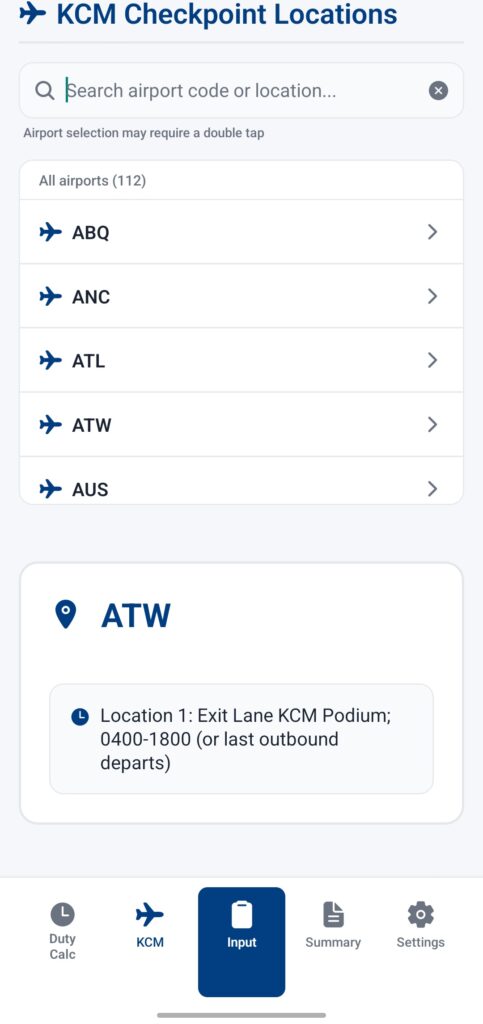
Simply either search or select (alphabetical order) airports for KCM locations and hours. Selecting the airport MAY require a double-tap. This list is NOT updated in real time, so information may not be 100% accurate. Use the feedback button on the settings page to request updates.